Seedance 2.0 Omni Reference: How Multi-Reference Input Works and How to Structure It
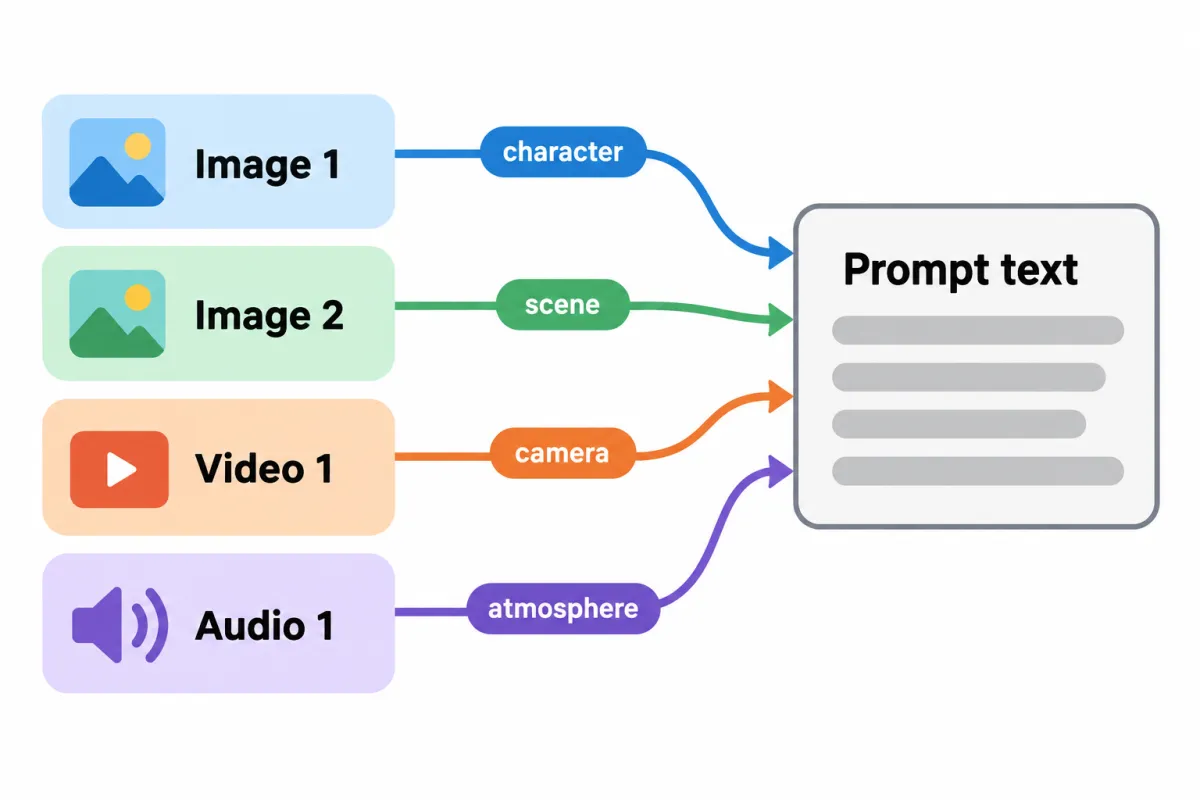
Seedance 2.0 omni reference is the mode where you send a text prompt together with up to 9 reference images, 3 reference videos and 3 audio clips, and the model builds one new video from the parts of each file your prompt points to. You point to files by type and number (“Image 1”, “Video 2”, “Audio 1”), and BytePlus recommends a working set of 4-5 assets rather than the full allowance (BytePlus ModelArk documentation, data checked 2026-10-09). The rest of this page sets out what each reference type supplies, the input limits, and the prompt structure BytePlus publishes for this mode.
This is a documentation guide, not a hands-on test. Everything below comes from three official BytePlus ModelArk pages: the Dreamina Seedance 2.0 series tutorial (page stamp “Last updated: September 29, 2026”), the Dreamina Seedance 2.0 series prompt guide (stamp “September 28, 2026”) and the video generation tutorial (stamp “September 28, 2026”). Where BytePlus says a technique helps or hurts, that is BytePlus’s claim; we have not measured output quality here.
What Seedance 2.0 omni reference does
The Seedance 2.0 series tutorial defines the mode in one sentence: “Input text, reference images, videos (with or without audio tracks), and audio to generate a new video.” The same paragraph lists what the model can take from each file type:
| Reference type | What BytePlus says the model can inherit from it | Typical job |
|---|---|---|
| Image | “character image, visual style, and screen composition” | Lock a character’s look, a product, a set or a palette |
| Video | “subject, camera movement, action performance, and overall style” | Borrow a camera move, a dance, an effect or a pacing |
| Audio | “timbre, music melody, and dialogue content” | Set a voice, a music bed or a line of dialogue |
Source: Seedance 2.0 series tutorial, “Basic usage” section, read 2026-10-09.
The prompt guide frames the mode as extraction: “Extract some elements from the asset (such as subject, style, scene, and sound effects) to generate a brand-new video.” Omni reference does not modify your input files; it reads them as instructions for a fresh clip.
All three models in the series support it. The tutorial’s capability table, checked 2026-10-09, marks image reference, video reference and four combined sets (image + audio, image + video, video + audio, image + video + audio) as supported on Seedance 2.0, 2.0 Fast and 2.0 Mini. The video generation tutorial’s table marks audio-only reference as not supported on all three, with the note “must be used with an image or video”.
On the API, omni reference has no separate endpoint on 2.0: each reference file in the task’s content array carries a role of reference_image, reference_video or reference_audio. Authentication and polling are in the Seedance API guide.
Omni reference vs image-to-video, edit and extend
Seedance 2.0 has several modes that accept files, and the docs treat them differently.
| Mode | How the file is marked | What the file controls |
|---|---|---|
| Image-to-video (first frame) | 1 image, role: first_frame | The exact opening frame |
| Image-to-video (first and last frames) | 2 images, first_frame and last_frame | The exact opening and closing frames |
| Omni reference | 1-9 images, up to 3 videos, up to 3 audio, reference_* roles | Elements the prompt names: subject, style, motion, voice |
| Edit video | A video in the same request; the prompt asks for an edit | The source clip, changed only where the prompt says |
| Extend video | A video in the same request; the prompt asks for an extension | The source clip, continued forward or backward |
Sources: Seedance 2.0 series tutorial and video generation tutorial, read 2026-10-09.
First and last frames inside omni reference. The 2.0 series tutorial allows a workaround: “For omni reference video generation, you can specify reference images as the first/last frame via prompts to indirectly achieve the effect of ‘first and last frames + omni reference’.” It then sets the boundary: “If you need to strictly ensure that the first and last frames are consistent with the specified images, please always use image-to-video (first and last frame) feature (configure the role parameter to first_frame / last_frame).” A prompt line such as “opening frame is Image 1” is a request, not a lock.
Reference vs edit. Edit and extend tasks on 2.0 also take a video, and the prompt wording decides which job runs. The prompt guide’s note is direct: “For edit / extend video tasks, directly use ‘<Video_N>’ to refer to the video. Do not use ‘reference <Video_N>’, to avoid being incorrectly identified as a reference task.” “Reference the camera movement in Video 1” asks for omni reference; “Extend Video 1 backward” asks for extension. Edit and extend are covered in our Seedance 2.0 video-to-video guide.
The guide also allows combined tasks, with the pattern “Reference [Reference_Dimension] of <Image/Video_N>, strictly edit <Video_X>, [Specific_Edits]”. That is how you restyle one clip using an element from another file.
Omni reference input limits (data checked 2026-10-09)
Each file type has its own count, length and size window. These are the Seedance 2.0 series limits from the “Omni reference input” section of the video generation tutorial:
| Input | Count per request | Length | Size | Accepted as |
|---|---|---|---|---|
| Images | 1-9 | n/a | under 30 MB each; sides 300-6000 px; width/height ratio 0.4-2.5 | URL, Base64 or asset ID |
| Videos | up to 3 | 2-15 s each, 15 s total | up to 200 MB each; 24-60 fps | URL or asset ID |
| Audio | up to 3 | 2-15 s each, 15 s total | up to 15 MB each | URL, Base64 or asset ID |
| Whole request | n/a | n/a | request body no more than 64 MB | n/a |
Image formats are .jpeg, .png, .webp, .bmp, .tiff, .gif, .heic and .heif. Videos must be .mp4 or .mov in H.264 or H.265 with AAC or MP3 audio, and their width times height must fall between 407,696 and 8,295,044 pixels. Audio must be .wav or .mp3. The tutorial adds: “Do not use Base64 encoding for large files.”
The 15-second totals apply across all videos and across all audio clips, so three 5-second videos already use the whole video budget.
Seedance 2.5 allows 1-30 images and up to 10 videos and 10 audio clips (30 seconds total each). Output resolutions and frame sizes are in our Seedance 2.0 spec sheet.
The consumer Dreamina app describes the same allowance as “up to 12 reference resources, including 9 photos, 3 videos, and 3 audio clips” on its Seedance 2.0 page, as recorded in our spec sheet on 2026-10-08.
How to refer to each reference in the prompt
This is the rule that most omni reference prompts get wrong, and the tutorial states it in full: “Prompts must reference assets in the format asset type + number, where the number is the sorting order of the asset among assets of the same type in the request body. For example, ‘Image n’ refers to the nth reference image with type=“image_url” in the content array (counting starts from 1 in array order). Note that referencing assets by Asset ID is not supported.”
Three consequences follow.
- Numbering is per type. In a content array of image, video, image, audio, the second image is “Image 2”, not “Image 3”. Videos and audio clips count separately.
- Order in the array is the numbering. If you reorder files in your code, every “Image n” in the prompt has to change with them. Build the prompt from the same list that builds the array.
- Asset IDs stay out of the prompt. You can upload a file by asset ID, but the prompt still calls it “Image 1”. The prompt guide repeats this: “you must not directly use the Asset ID instead of <Image/Video_N>.”
Brackets, @ or plain text
BytePlus writes the reference token three ways across its own pages, all read 2026-10-09:
| Where | How the token appears | Example from the page |
|---|---|---|
| 2.0 series tutorial, demo caption | Square brackets | “opening frame is [Image 1]” |
| 2.0 series tutorial, API request body | Plain text | “opening frame is Image 1” |
| 2.0 series prompt guide, worked cases | @ prefix | “Use the girl in @Image 1 as the main character” |
The documented rule only asks for “asset type + number”, and none of the three pages says one style outperforms another, so pick one and use it consistently. Our Seedance 2.0 tips cover the wider prompt settings.
Bind each subject to its file
An image often holds more than one candidate subject, so the prompt guide asks you to name which one you mean. Its pattern is “Define [Core_Subject_Features] in <Image/Video_N> as <Subject_N>”, using “2–3 clear and stable static features (such as clothing, hairstyle, appearance, or category)”. Its own example: “Define the woman wearing a red dress and a straw hat in Image 1 as Subject 1”.
After that, the guide asks for the same label every time the subject appears. It allows two styles:
- Undefined subjects: attach the file each time, as in “Zhang San@Image 1”.
- Predefined subjects: define once, then reuse the label. The guide’s chase example defines “the tall man in Video 1 as police officer” and “the other short man as thief”, and then uses only those two labels.
When the same character appears in two files, bind them together: “Define […] in Image 1 and […] in Image 2 as <Subject_N>”.
The recommended prompt structure for omni reference
BytePlus publishes two layers of structure: a one-line basic formula per reference type, and an advanced formula for the whole prompt.
Basic formulas, by reference type
The tutorial and the prompt guide give these patterns for omni reference (read 2026-10-09):
| Reference type | Tutorial pattern | Prompt guide pattern |
|---|---|---|
| Image | Reference / extract / combine + “subject / referenced element description” from “Image n” to generate “plot description”, keeping the characteristics of “subject / referenced element description” consistent. | Reference <Subject_N> in <Image_N> to generate… |
| Video | Reference “action description / camera movement description / special effect description” from “Video n” to generate “plot description”, keeping the action details / camera movement / special effects consistent. | Reference <Action/Camera_movement/Style/Sound_effect> in <Video_N> to generate… |
| Audio, voice | “Character” says: “lines”, voice timbre references “Audio n”. | Reference the timbre in <Audio_N> to generate… |
| Audio, content | Ideal appearance timing + “Audio n”. | n/a |
The structure in both versions is the same: name the file, name what to take from it, then say what to generate. A reference that is attached but never named in the prompt gives the model no instruction about which element to take.
The advanced formula
For full prompts the guide gives one line: “precise subject + action details + scene/environment + lighting & color tone + camera movement + visual style + image quality + constraints”. It summarises the order as: first lock in “who” is “doing what”, then “where” and “what atmosphere”, then “how to shoot”, and finally style, image quality and constraints.
The guide’s reasoning is that Seedance 2.0 splits a request into a “spatial layer” (what is in the frame) and a “temporal layer” (how things change over time).
Write shots, not timestamps
For anything longer than a single action, the guide recommends a storyboard: “Use identifiers such as Shot 1, Shot 2, and Shot 3 to organize content in the order events occur”. It then warns: “The model’s support for precise timing (such as 0–3 seconds) is unstable, and forcibly limiting duration may lead to abnormal generation results.”
That warning sits oddly next to BytePlus’s own fruit-tea demo in the tutorial, which uses ranges such as “2–4 seconds” and “6–8 seconds”. We follow the prompt guide’s rule, because it is the page that addresses timing directly: number the shots and let the model pace them. Our multi-shot storytelling guide covers how to plan a sequence across several clips.
Inside each shot the guide suggests four parts in this order:
- Camera movement or transition (“slowly push in from a wide shot”, “cut to…”)
- Subject actions and expressions
- Position or spatial changes
- Audio: sound effects, voices, music
It adds two camera rules: use standard terms such as “medium shot, close-up, wide shot, slow push-in”, and “Try to specify only 1 type of camera movement in a single shot.”
Constraints at the end
The guide closes the formula with constraint words, with templates such as “keep it subtitle-free”, “do not generate a logo” and “do not generate a watermark”.
How many references to use
The limit you may use and the number BytePlus suggests are far apart. The prompt guide’s “Asset configuration strategy” sorts references into four functional roles:
- Character anchoring: lock the character appearance
- Scene tone-setting: lock the environment and style
- Camera movement reference: lock the shot language and action rhythm
- Rhythmic atmosphere: use audio to control emotion and timbre
Its recommended set is “4-5 assets in total”: “1-2 character images (facial close-up / full body) + 1 scene image + 1 camera movement video + 1 audio clip.” The tip below it reads: “It is not recommended to use the full asset limit. Too many assets will make it difficult for the model to judge feature priorities, which can easily cause issues such as style conflicts, blurry subject identification, and generated results deviating from expectations.”
We use the four roles as a test: each file gets one job, and if two files would both set the scene or the camera, one of them goes.
What the guide says about character references
The prompt guide’s FAQ addresses character consistency in several entries, all read 2026-10-09:
- Face drift. It names two causes: a single combined image holding face, pose and outfit together, and a face that takes up too little of the image. Its fix is a separate headshot plus a full-body photo, bound in the prompt as “<Subject 1> facial features reference image 1 (headshot), makeup and styling reference image 2 (full-body photo)”, and to “Place important assets first”.
- Multi-view sheets. “Using multi-view character images is not recommended.” The guide says the model may read the angles as different people. It recommends “independent single-person photos” instead of three-view sheets.
- More than four people. “When the number of reference people exceeds 4, the stability of the model output decreases”. The suggested workaround is to generate group images of no more than four people first, then use those as references.
- Voice mismatch. When reference audio does not carry through, the guide suggests describing the voice in the prompt and keeping the dialogue close to the tone of the reference clip. Its example line: “Use the low, thick, warm, and finely grainy middle-aged male voice of @Audio 1 to say”.
The prompt guide does not mention output resolution anywhere, including in its face-consistency advice. For voice and dialogue specifically, see our Seedance lip sync guide and the native audio guide.
A request skeleton that follows the official structure
The structure below follows BytePlus’s documented patterns: four assets in the recommended roles, every file named by type and number, subjects defined once, numbered shots and constraints last. The scene is our own illustration, not a tested prompt, and the URLs are placeholders.
{
  "model": "dreamina-seedance-2-0-260128",
  "content": [
    {
      "type": "text",
      "text": "Define the woman in the yellow raincoat in Image 1 as Mia. Use the harbor at dusk in Image 2 as the scene reference, and reference the slow lateral tracking camera movement in Video 1. Shot 1: Wide shot, the camera tracks slowly from left to right; Mia walks along the pier past moored fishing boats, rain falling lightly. Shot 2: Cut to a medium shot; Mia stops and turns her head toward the water, her hood slipping back. Shot 3: Close-up; Mia smiles slightly as a ship horn sounds in the distance. Use Audio 1 as the background music throughout. Cinematic texture, soft lighting, natural colors. Keep it subtitle-free, do not generate a logo, Mia's face remains stable without deformation."
    },
    { "type": "image_url", "image_url": { "url": "https://example.com/mia.jpg" }, "role": "reference_image" },
    { "type": "image_url", "image_url": { "url": "https://example.com/harbor.jpg" }, "role": "reference_image" },
    { "type": "video_url", "video_url": { "url": "https://example.com/tracking.mp4" }, "role": "reference_video" },
    { "type": "audio_url", "audio_url": { "url": "https://example.com/score.mp3" }, "role": "reference_audio" }
  ],
  "generate_audio": true,
  "ratio": "16:9",
  "duration": -1
}
How each line maps to the docs:
- Image 1 and Image 2 are the first and second
image_urlitems in array order, which is what makes the numbering valid. - “Define … as Mia” follows the subject-binding pattern; every later mention uses the same label.
- “reference the … camera movement in Video 1” uses the verb “reference”, which the prompt guide ties to omni reference rather than edit or extend.
- Shot 1-3 use shot numbers with one camera movement each and no second-level timings.
- Audio 1 is paired with images and a video, since audio cannot be the only reference on 2.0.
duration: -1lets the model choose a length within 4-15 seconds, as documented in the tutorial.
Field names and roles match the tutorial’s Python example (read 2026-10-09). For a single-image first-frame setup, see the image-to-video tutorial.
Real faces and portrait routes
One restriction sits outside the numbers. The video generation tutorial states: “Dreamina Seedance 2.5 and Dreamina Seedance 2.0 series models do not support direct uploads of reference images or videos containing real human faces.” The 2.0 series tutorial lists three routes for portrait work, as of 2026-10-09:
| Route | What the tutorial says |
|---|---|
| Use trusted model outputs as input assets | “Original face-containing outputs generated by some models under your account can be used as input assets of Seedance 2.0 series models without being intercepted by input moderation.” |
| Use preset digital characters | A “pre-built digital character library” for “scenarios that require realistic but not specific human faces” |
| Use authorized real-person assets | “Supports video generation using authorized real portrait assets.” |
Details for each route are on BytePlus’s page “Create portrait videos with Dreamina Seedance models”.
Pre-submit checklist for an omni reference request
- Counts: no more than 9 images, 3 videos and 3 audio clips; video and audio each 15 seconds total or less.
- Audio is paired with at least one image or video.
- Every file is named in the prompt as type plus number, counted per type in array order.
- No asset IDs in the prompt text.
- Each subject has one label, defined once and reused.
- Verb matches the task: “reference” for omni reference; plain “Video N” for edit or extend.
- Shots are numbered, with one camera movement each and no forced timings.
- 4-5 assets, one per functional role, unless you have a reason to go further.
- No real faces in direct uploads; use a portrait route.
- Request body under 64 MB; send large files by URL or asset ID.
Sources and check dates
All quotations and limits on this page were read from these official pages on 2026-10-09:
- BytePlus ModelArk, Dreamina Seedance 2.0 series tutorial (last updated September 29, 2026): https://docs.byteplus.com/en/docs/ModelArk/2291680
- BytePlus ModelArk, Dreamina Seedance 2.0 series prompt guide (last updated September 28, 2026): https://docs.byteplus.com/en/docs/ModelArk/2222480
- BytePlus ModelArk, video generation tutorial (last updated September 28, 2026): https://docs.byteplus.com/en/docs/ModelArk/2298881
The Dreamina reference figure comes from our spec sheet, checked 2026-10-08. BytePlus revises these pages often; we re-check this guide when the Seedance 2.0 series pages change.
SeedanceTips is an independent publication. We are not affiliated with ByteDance, Dreamina or BytePlus, and this page contains no affiliate links.